Where You Can Get the Newest HighTech-IT and Gadgets Reviews


5/2/07

The Right Operating System for You


The Right Operating System for You
By Scott Spanbauer, PC World


Windows Vista or XP? Windows, Mac, or Linux? How about all of the above? With improved virtualization technology, you might not have to settle for just one OS.
Once, you were either a Mac person or a Windows user. Or maybe you were a Unix geek. Whichever your poison, you likely had only one operating system in your life. Thanks to the ubiquity of the Intel processor and the hard work of untold legions of software developers, however, those days are over. Now, Apple's machines can run Windows XP. Windows Vista is available on brand-new computers, but you can also boot the same PC with an Ubuntu Linux disc that you downloaded and burned for free. And if you like Ubuntu, you can install it alongside Windows in a few clicks.
Drastic improvements in virtualization software, along with hardware advancements and standardization on x86 CPUs, allow any operating system to play host to virtual versions of other OSs.
Every machine still needs a primary operating system, but mixing and matching them is now much easier. My home office contains a mix of Macs running OS X and PCs running Windows XP, Windows Vista, Ubuntu, and OpenSuSE Linux. And my next system will likely be a Mac with three or more of those OSs installed--maybe even running--at the same time. If you can afford Apple's hardware, that's the choice I'd recommend. Why? Check out our operating systems comparison chart for a breakdown of the major contenders' strengths and weaknesses, and read on for a look at the state of each OS.
Extolling Windows XPWindows Vista's long gestation and protracted birth pangs are over at last, thank heavens. Windows Vista's running nicely on my fairly modern desktop system, and I've enjoyed using its updated interface and utilities for everyday work and recreation. But before we get to the new kid, a few words about good old Windows XP.
Despite its reputation for swiss-cheese security, XP quickly became a very successful OS. Before XP (and its admirable predecessor, Windows 2000), Microsoft operating systems crashed, died, and blue-screened weekly or even daily. Though crashes still occur, they're far less frequent than in previous Windows versions, and some XP users (including me) have PCs that rarely see so much as a hiccup.
XP has been the biggest-selling operating system in the universe for almost half a decade now, so it's where most of the action is. Whatever you long to do with a PC--accounting, blogging, photography, engineering, aimless wandering on the Internet--the necessary hardware and software will work under Windows XP.
Of course, to keep that copy of XP running smoothly, you'll have to work to keep the wolves at bay. While Service Pack 2, Windows Security Center, and Internet Explorer 7 have closed a lot of holes, XP is sure to attract hackers and malware writers for years to come. Your firewall, antivirus software, and spyware protection remain as important as ever.
According to Forrester Research, 40 percent of business Windows customers will transition to Windows Vista within the next year, and consumer adoption will expand gradually from 12 million users in the first year to 73 million after four years. Microsoft will continue to roll out Windows XP security fixes for at least five years after it releases Service Pack 3, currently slated for the first half of 2008. So relax. There's no rush.

Read More......

First Look: Personal Finance Software--the 2007 Lineup NO.2

First Look: Personal Finance Software--the 2007 Lineup
(continued)


Quicken's New LookIntuit generally seems to be keeping up the pressure on Microsoft in innovation. Quicken 2007's user interface dispenses with lists of alerts and upcoming transactions, opting instead for a look at projected cash flow as expressed through three boxes: In, Out, and What's Left. It's a quick way of checking whether you're on top of your expenses--assuming that you keep on top of data entry (a proviso that applies to all financial tracking and forecasting features in any software). Overall, it's probably more useful than a simple list of account balances and upcoming bills.
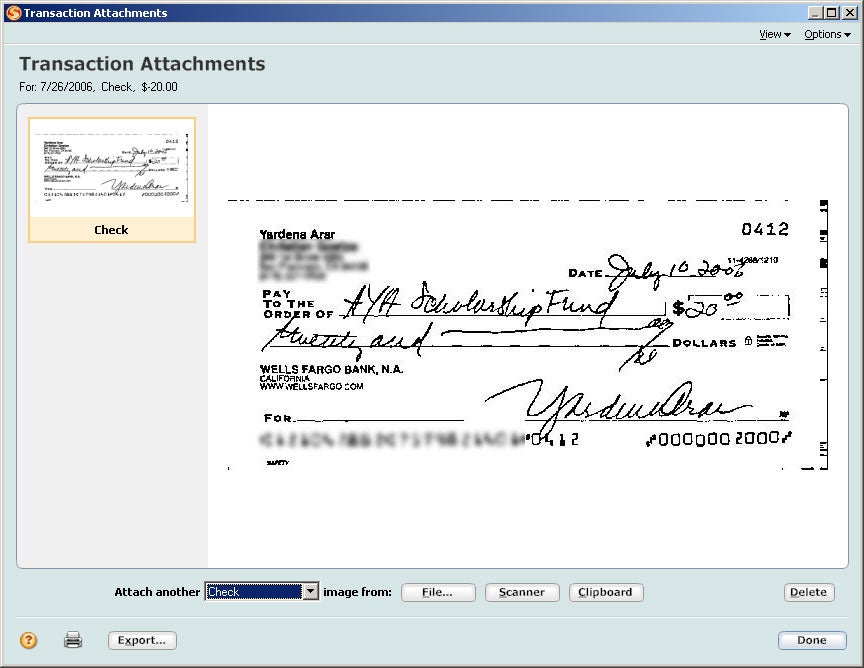
The other major improvement in Quicken 2007 is its support for attaching electronic records (in all but the cheapest edition). Last year's versions let you attach files stored on your hard drive; this year the software supports scanners and permits you to attach a file from the Windows clipboard, saving you a step or two if you're getting files from your bank's Web site (you can right-click within your browser to save a check image or statement to the clipboard, and then pop it into Quicken).
Both Quicken and Money come in several editions to meet different needs; the versions I checked out are loaded with features for investors; Intuit also has a Basic version, which sells for $30 (and which would-be Essentials buyers might want to consider); a Deluxe version for $60 (fewer investor features); and a Home & Business version for $90 that targets people who want to manage their Schedule C sole proprietorship businesses with their other finances. In addition to its Premier and Deluxe versions, Microsoft has a $90 Home & Business version. Both companies offer mail-in rebates for all but their lowest-end products.
For most new users, I'd still recommend Quicken Deluxe or Premier over their Money counterparts, mainly because of the support for electronic attachments. But if you have a product you like and you don't need to upgrade for online support, stick with it.
Microsoft Money EssentialsPC World Rating:77Designed for newcomers to personal finance software, Money Essentials delivers the basics at a low price, but you get only one year of online support, and even newbies might discover some disappointing shortcomings.
Microsoft Money 2007 PremiumPC World Rating:80Microsoft's 2007 upgrade is a humdrum affair in most respects, though the new budgeting tool seems worthwhile. But it's only a must-get upgrade if you currently use Money 2005 or earlier and want to maintain online services.
Quicken Premier 2007 (beta)PC World Rating:85The main selling points of this year's Quicken are a redesigned interface that focuses on cash flow and improved support for attaching electronic records. It's not a must-have upgrade unless you're running Quicken 2004 or earlier and want to maintain support for online services.

Content by:


Read More......

First Look: Personal Finance Software--the 2007 Lineup

First Look: Personal Finance Software--the 2007 Lineup
Yardena Arar, PC World

Quicken 2007 sports a new look, while Microsoft introduces a simplified version of Money for new users.
The 2007 versions of the two big packages in personal finance software, Intuit Quicken and Microsoft Money, will be on retail shelves this month, but don't feel obligated to race to the computer store (online or otherwise) to buy a copy of either one. I tried out a late beta version of Quicken Premier 2007 and shipping copies of Money 2007 Premium and the new Money Essentials; and though some features looked good, I saw nothing that made me wildly enthusiastic.
Don't get me wrong--I use personal finance software and wouldn't do without it. But it's pretty underwhelming when the main reason you'd advise someone to upgrade is to maintain the support for online services that both Microsoft and Intuit withdraw from users of older versions of their products. Intuit is slightly better on this score than Microsoft: It makes you upgrade Quicken only once every three years, while Microsoft ends online services support after just two years for most versions of Money. The exception is Money Essentials--Microsoft limits its online services for that program to a single year.
It's the first of several skimpy aspects of Essentials, which the company created in hopes of enticing people who currently use Web-based banking services but who have thus far found desktop financial managers too intimidating or too expensive. (You can't import existing Money data into Essentials, so only new users need apply.) At $20, Essentials is certainly cheap, but it's so lacking in features that some newcomers may wonder what the fuss over desktop software is all about.
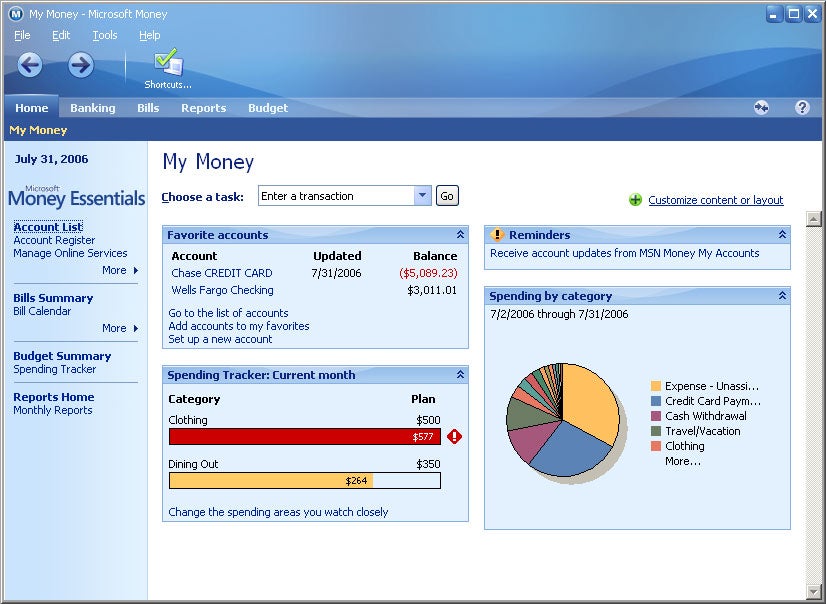
Bare-Bones Finance TrackingAs its name suggests, Essentials does provide the basics: You can download transaction data from most banks and assign basic categories in order to track spending and income. You can also enter monthly bills and track which ones you've paid. And you can export data to tax preparation software that supports the .txf file format, including TaxCut and TurboTax. Microsoft's interface is pleasing, too, with its colorful spending pie chart and trackers that let you see whether you're adhering to spending limits that you specify for up to three categories of your choice.
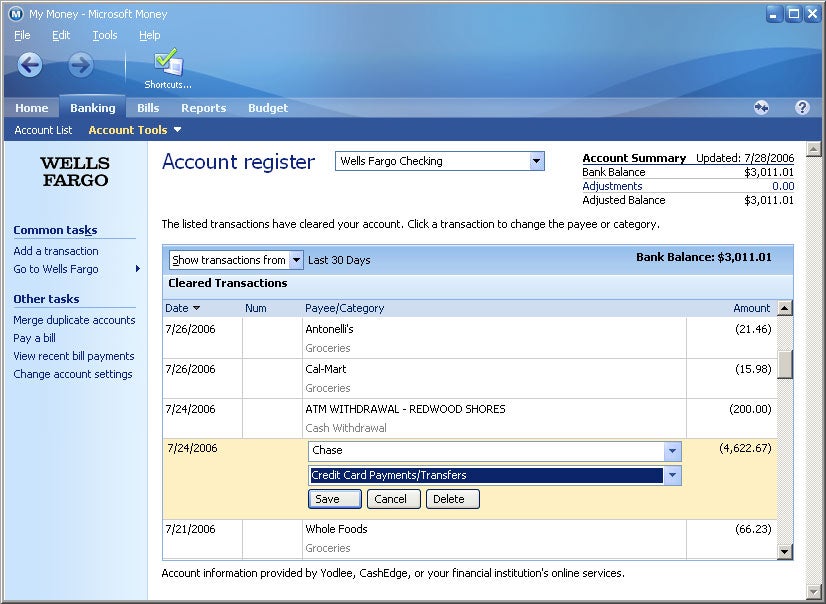
But the account registers provide no field for notes to help you remember details of specific transactions (what concert did that Ticketmaster charge pay for?). And there's no support for transfer transactions: If you record a payment to Visa in your checking account, it won't show up in the register for that Visa account unless you enter it manually or download it from Visa. Furthermore, you can't divide a transaction between multiple categories. If you go shopping at Costco, for example, you can't assign part of the expense to groceries and part to clothing.
Not surprisingly, Essentials doesn't offer any of the investment and planning features that other versions of Money (to varying degrees) provide. For $20, I wouldn't expect it to.
But Microsoft hasn't revealed how much it will charge for online service support beyond the included year. People interested in desktop software might be better off investing in the $50 Deluxe version of Money (Microsoft offers a $20 mail-in rebate) and getting two years of support plus a tool they can grow into.
Both Microsoft and Intuit have done a good job of simplifying the new-user setup in their products to accommodate impatient customers. If you don't want to enter account data right away, simply skip to the home page. As a result of this improvement, there's less reason than ever to get a dumbed-down package.
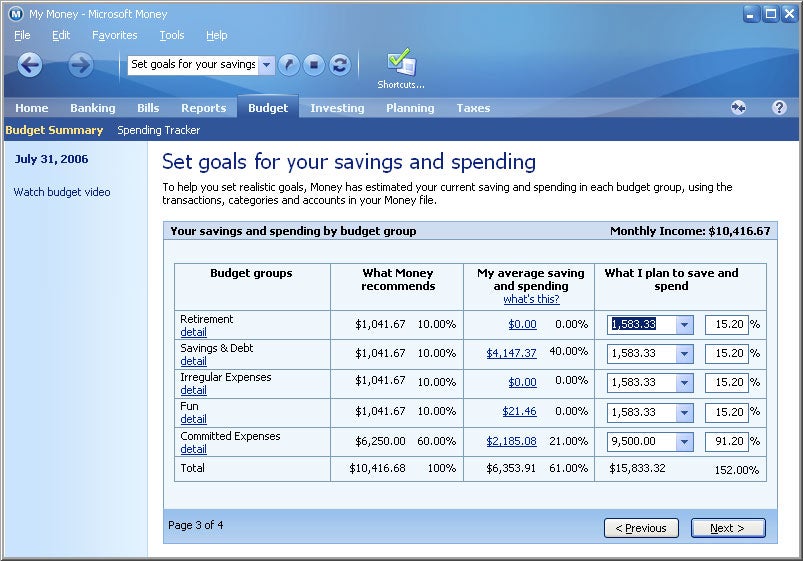
Full-Featured OptionsThe biggest innovation in Microsoft's full-featured Premium edition this year is a budgeting tool based on a strategy for building savings developed by MSN Money editor-in-chief Richard Jenkins. In an article (available in the software) called "A Simpler Way to Save: The 60% Solution," Jenkins recommends allocating 60 percent of your gross income for what he calls "committed expenses"--food, clothing, household essentials, insurance, charitable contributions, regular bills, and taxes. That leaves 10 percent for retirement savings, 10 percent for long-term savings, 10 percent for irregular expenses (read: emergencies), and 10 percent for "fun money"--basically anything else.
Money's budgeting feature provides a calculator for the plan, though you can adjust the percentages to suit your fancy. If you're going to upgrade, the plan calculator might be worth trying, but I wouldn't recommend upgrading just to get this feature. The same goes for other (and smaller) new features; by and large, they're simply tweaks of existing ones.
Money's modular and customizable user interface covers all the basics. But Money is still missing a great feature that Intuit introduced in Quicken last year: the ability to attach electronic records. And until Microsoft adds that (and matches Quicken's three-year support for online services), Intuit will continue to hold the edge.


Read More......

Learn Your Way Around Windows Vista

Learn Your Way Around Windows Vista
Edited by Peggy Watt, PC World

Newsletter #8: Find familiar Windows Functions, Meet New Ones
Get Acquainted With Windows VistaAlthough Windows Vista offers numerous new features along with its revamped interface, you'll still find some of the old standbys. If you're missing some familiar tools, Microsoft even gives you the means to restore them in the new operating system.
From finding and launching applications to managing files, Windows Vista provides options for performing familiar tasks and ways to customize familiar functions.
Find Your Apps: Still Singing "Start Me Up?"What did Microsoft do to the Start Menu this time?Microsoft has redone the Start Menu yet again, but this time around you might like the change. Gone is the annoying flyaway menu for the All Programs selection. With Windows Vista, when you click All Programs, applications and folders appear directly above it for easier access. There's also a useful search box for quick searches. The Run link is gone too, unfortunately, but you can make it reappear.
Tailoring Windows Vista to Your NeedsHow do I make Run appear, and how else can I customize the Start Menu?Right-click the Taskbar, choose Properties, and click the Start Menu tab. Click the Customize button and you'll be able to add the Run link--and change the Start Menu in many other ways as well.
Does the clock on the right side of the Taskbar have any new features?It may look like the Windows XP clock, but it's much better. In fact, you can put multiple clocks there, showing times from around the world. Click the clock and a much larger clock (along with a calendar) appears. Click Change date and time settings, and customize to your heart's content.


Content by:


Read More......

All About Windows Vista

All About Windows Vista
Edited by Peggy Watt, PC World

Newsletter #1: Introducing Windows Vista
The Essentials of the Next WindowsThis is the first of a new series of weekly reports by PC World to help you become acquainted with Windows Vista, Microsoft's newest version of its Windows operating system. Windows Vista becomes available to consumers this month, after an extensive testing period and gradual rollout to businesses.
When is Windows Vista finally coming out?Unlike previous Windows launches, Vista's debut has been divided into two extravaganzas, presumably in part because the upgrade will miss the holiday 2006 season due to scheduling delays.
On November 30, Microsoft unveiled the corporate version of the new OS (along with Office 2007), and companies with volume license agreements got a jumpstart on obtaining Windows Vista and installing it on PCs they already own.
But the bigger Windows Vista rollout can't happen until Microsoft duplicates millions of DVDs, puts them in boxes, and ships them to retailers--and until PC companies design, manufacture, and ship systems with Windows Vista preinstalled. So for home users, small businesses, and anyone who wants to buy a new Windows Vista PC, the date that matters is January 30. That's when Windows Vista will officially be launched as a consumer product.
Getting AcquaintedOn the continuum of Windows-upgrade importance, where does Windows Vista belong?Placing Windows 95 as a giant leap forward and Windows Me as a step backward, Windows Vista falls somewhere in the middle: Call it a medium-size stride in the right direction.
In terms of new features, it offers lots of small yet worthwhile improvements--but no breakthroughs. On the other hand, if the upgrade's new emphasis on security makes it less susceptible to viruses, spyware, and hacker attacks, that would be a strong argument in its favor.
Windows Vista offers better support than XP for today's powerful hardware, such as 64-bit CPUs and cutting-edge graphics cards, providing the structural basis for potent applications that could never have been written for Windows XP. As those applications begin to appear, Windows Vista should grow into a more compelling upgrade than it is on day one.
How does Windows Vista stack up against the most recent Apple OS?In our 2005 World Class Awards, we named Apple's OS X 10.4 ("Tiger") the third-best product of the year, while Windows XP wasn't mentioned at all. But Windows Vista at least narrows the gap between operating systems that hail from Redmond and Cupertino. In part this is because Windows Vista adds so many features--from decent integrated search to Gadgets (aka Widgets) to fancy 3D effects--that Tiger already has.
With Leopard, Apple's next generation of OS X, due out next spring, Mac owners will get some new features that may put Windows users farther back in their rear-view mirrors. For instance, judging from previews, Leopard's Time Machine continuous-backup utility may be superior to Windows Vista's Backup, System Restore, and Previous Versions data-recovery features.
For more information on Windows Vista, see our "Windows Vista FAQ" and our extensive, in-depth preview, "Everything You Need to Know About Windows Vista."
Next: Newsletter #2, What to Know Before You Upgrade


Content by:

Read More......

© 2008 Gizmoza.COM All rights reserved.Any comment please contact Administrators master934@hotmail.com